Skip to content

TI-84 Evo Games

Free games for your TI-84 Evo graphing calculator. Three originals we made ourselves, and they run right on your calculator in its Python app.

Free download

Requires a TI-84 Evo · Free

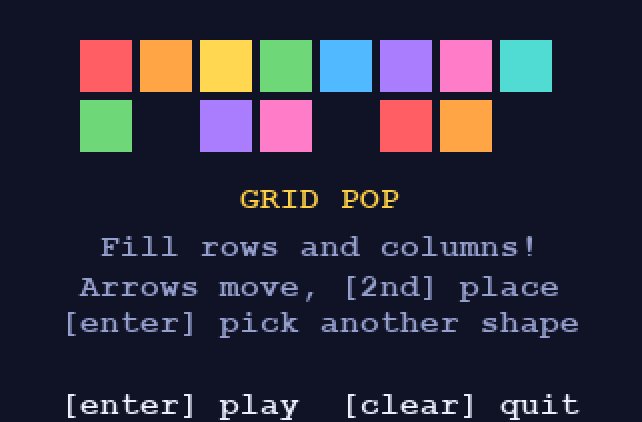
The Grid Pop title screen

The games

Three games, made by us

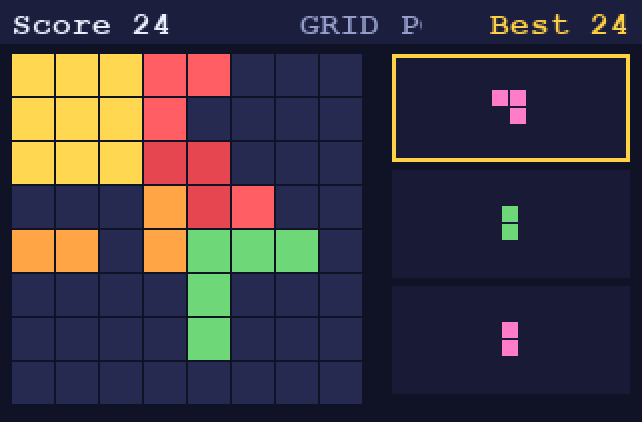
Grid Pop being played on the calculator

Grid Pop

Free download

You get three shapes at a time. Place them on the 8 by 8 board, and fill a whole row or column to clear it. Clear more than one at once for bonus points. The game ends when none of your shapes fit.

  • ArrowsMove the shape
  • 2ndPlace it
  • enterPick another shape
  • clearQuit

File: GRIDPOP.py

Download Grid Pop
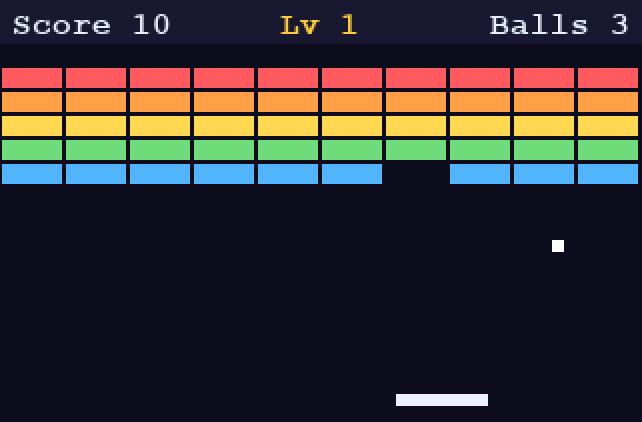
Block Bop being played on the calculator

Block Bop

Free download

Bounce the ball off your paddle to break every brick. Where the ball hits the paddle sets its angle. Silver bricks take two hits, and each level brings a new pattern and a faster ball.

  • Left / RightMove paddle
  • 2nd or UpLaunch ball
  • enterPause
  • clearQuit

File: BLOCKBOP.py

Download Block Bop
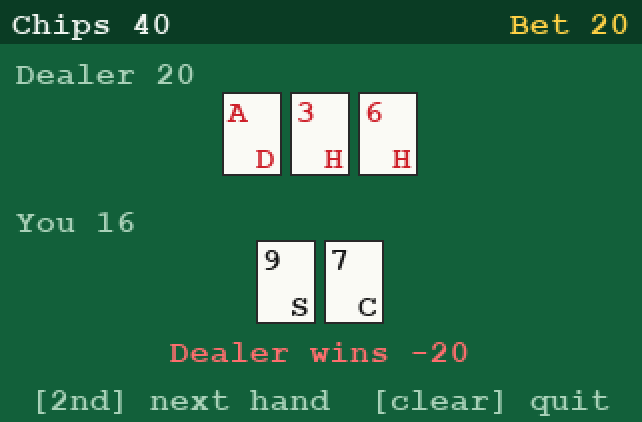
Blackjack being played on the calculator

Blackjack

Free download

Get closer to 21 than the dealer without going over. You start with 100 chips: pick your bet, then hit, stand, or double down. Blackjack pays 3 to 2, and the dealer hits until 17.

  • Left / RightChange your bet
  • 2ndDeal / Hit
  • enterStand
  • DownDouble down
  • clearQuit

File: BLACKJAK.py

Download Blackjack

Screenshots are from our test simulator, so the letters on your calculator will look a little different.

Instructions

How to put a game on your TI-84 Evo

What you need

  • A TI-84 Evo graphing calculator.
  • Its USB-C cable.
  • A computer with internet. TI Connect Evo, Texas Instruments’ free tool for sending files to the calculator, runs in your web browser, so there’s nothing to install.
  1. 1

    Download the game

    Click Download under the game you want, in The games above. By downloading, you agree to the Terms. You’ll get a file like GRIDPOP.py. Don’t rename it: calculator program names can only be 1 to 8 letters.

  2. 2

    Open TI Connect Evo

    Go to TI Connect Evo on Texas Instruments’ website and open it in your browser.

  3. 3

    Connect your calculator

    Plug your TI-84 Evo into the computer with the USB-C cable and turn it on. If your browser asks to let the page connect to your calculator, pick your calculator and click Connect.

  4. 4

    Send the game

    In TI Connect Evo, choose Send files, pick the .py file you downloaded, and send it to your calculator. Do the same for each game you want.

  5. 5

    Play

    On your calculator, press prgm, choose the Python App, then pick the game (like GRIDPOP) from the list and run it. Each game shows its controls on the first screen. Press clear to quit.

Troubleshooting

If your calculator’s memory was fully reset, the Python App can disappear. Open TI Connect Evo, connect your calculator, and choose Install OS. Then send the games again.

Make sure you sent the .py file and didn’t rename it. Program names have to be 1 to 8 letters, like GRIDPOP, BLOCKBOP, or BLACKJAK. Then try sending it again.

Delete programs you don’t use anymore, then send the game again.

Calculators are often reset before tests, which removes games. Just send them again with TI Connect Evo.

Only when your teacher says it’s OK, and never during a test.

These games are made for the TI-84 Evo. Other calculators may not be able to run them.

Programs For You isn’t affiliated with Texas Instruments. TI-84 Evo is a trademark of Texas Instruments. Our games are © 2026 Programs For You. All rights reserved.

Get the games

Free for your TI-84 Evo. Download any game below. No email needed.

Requires a TI-84 Evo